 dNotes - PowerPoint Notes Viewer
dNotes is a Live Notes Viewer for PowerPoint. A fully
integrated PowerPoint add-in broadcasts the notes page of
the current slide over a network. A computer on the same
network running dNotes Client receives and displays
the notes on a secondary display along with a countdown
timer and messager.
With this display placed by the side of a speaker's comfort
monitor, they now has all the prompting they need to deliver
a fluid presentation.
Download your fully functional 30 day trial right now for free .
dNotes Add-in for PowerPoint 
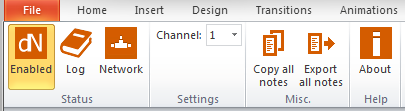
When installed on a computer running PowerPoint 2010 or
later, dNotes Add-in provides an additional menu tab
to PowerPoint where you can enable/disable the feature and
select the source channel. This seamless integration
requires no further configuration.
A dNotes Add-in licence can be moved to another computer as
many times as you like. Deactivate from within PowerPoint or
from your own online account.
dNotes Client (free download)
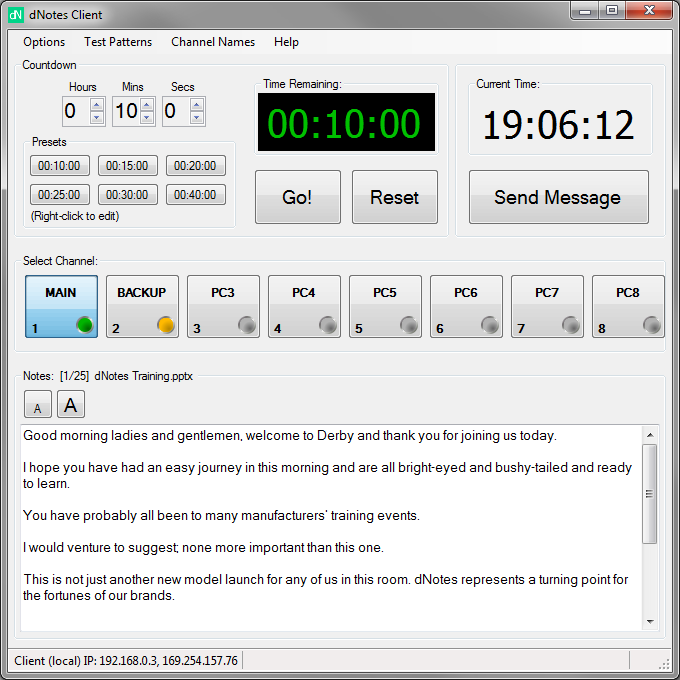
dNotes Client works best with a secondary display.
dNotes Client will take over that display and show
the notes for the current slide of the active presentation
channel, along with the slide number and a countdown timer.
The notes can be momentarily replaced by a typed message. In
the absence of any notes or indeed, any presentation,
dNotes Client will still show a countdown timer and
messages.
Select Channel
Up to 8 simultaneous notes channels are supported. If the
client detects an active channel, the channel button icon
will turn from grey. A yellow icon indicates an active
channel with no running presentation and a green icon
indicates an active channel with running presentation. The
name of the channel button can be changed by right-clicking
on a button. Selecting a new channel will immediately change
the secondary display to the new channel's notes.
Notes
When an active channel is selected, the notes window will
update to show the slide progress, the presentation name
and the notes for the current slide. The font size for the
notes in this window can be changed by selecting the
large/small font buttons. Increase the size of the dNotes
Client window to provide greater space for notes.
Message
Clicking on the Message button will bring up a window
where you can type a message that will replace the notes
portion of the secondary display for as long as the
Message window remains open.
Countdown
The countdown timer is controlled by the user. A time
can be selected manually or chosen from one of 6
presets. The font and size of the countdown timer can be
set by the user and the colour can be set to change when
the timer reaches certain values. Additionally, there is
an option to have the timer stop at zero or to count up
after zero.
Test Patterns
Several test patterns are available for setting up the
secondary display. Close the Test Patterns window to
resume normal display.
Secondary Display
The secondary display shows the countdown timer, any
notes from the active channel and the slide progress. The
notes text font, colour and size can be set by the user.
If the notes exceed the available display space the font
size is automatically reduced to fit. All resolutions are
supported.

Minimum Requirements
- Microsoft Windows 7
- Microsoft Office 2010
- Microsoft .NET Framework 4
- Microsoft Visual Studio Tools for Office
- Two computers sharing a LAN connection